

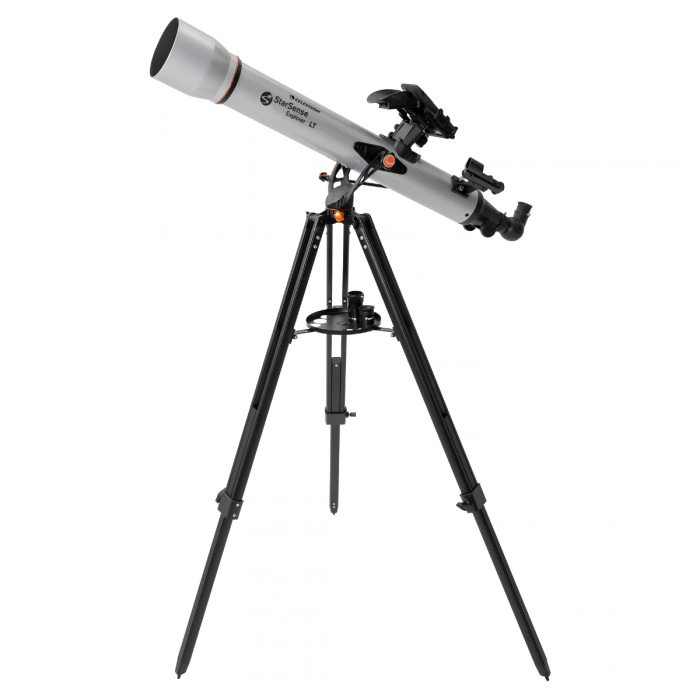
Celestron StarSense Explorer LT 80AZ App-Enabled Refractor Telescope
Stock count is accurate & shown in real time.
- This item is out of stock.
- Sign up for back-in-stock alerts to be notified when this item becomes available (account login required).
- This item is out of stock.
- Sign up for back-in-stock alerts to be notified when this item becomes available (account login required).
Contiguous US / Lower 48:
Free shipping applies to orders over $50 using our chosen carrier/method. Faster paid options are available at checkout.
Alaska, Hawaii & US Territories:
Free shipping applies to many—but not all—products. Enter your ZIP code in cart or upon checkout to confirm options and costs.
International:
International orders do not qualify for free shipping. Shipping, duties, brokerage, tariffs, and taxes are the customer’s responsibility. Some items may be restricted due to export, size, or manufacturer limitations.
- 80mm refractor optical tube
- StarSense dock for your smartphone
- Low powered (25mm) and high powered (10mm) eyepiece
- 2x Barlow lens to double the power of each eyepiece
- 90-degree erect image diagonal
- StarPointer red dot finderscope, perfect for using the telescope during the day or without the StarSense Explorer app
- Altazimuth mount with slow motion control rod
- Full-height tripod with an accessory tray to keep you organized
StarSense Explorer LT 80AZ: Your Personal Guide of the Night Sky!
The Celestron StarSense Explorer LT 80AZ combines an 80mm refractor with smartphone-guided navigation, making it easy for beginners to start exploring the night sky. Simply dock your phone, launch the StarSense Explorer app, and follow the on-screen arrows to stars, planets, and more. The telescope comes ready to observe with 25mm and 10mm eyepieces, a 2x Barlow lens, 90° erect-image diagonal, StarPointer red dot finderscope, smartphone dock, and adjustable tripod.
Follow along with Celestron to get the StarSense Explorer 80mm ready for the night sky:
See Why the Explorer 80mm is a Must-Have for Beginners!
Guided Observing
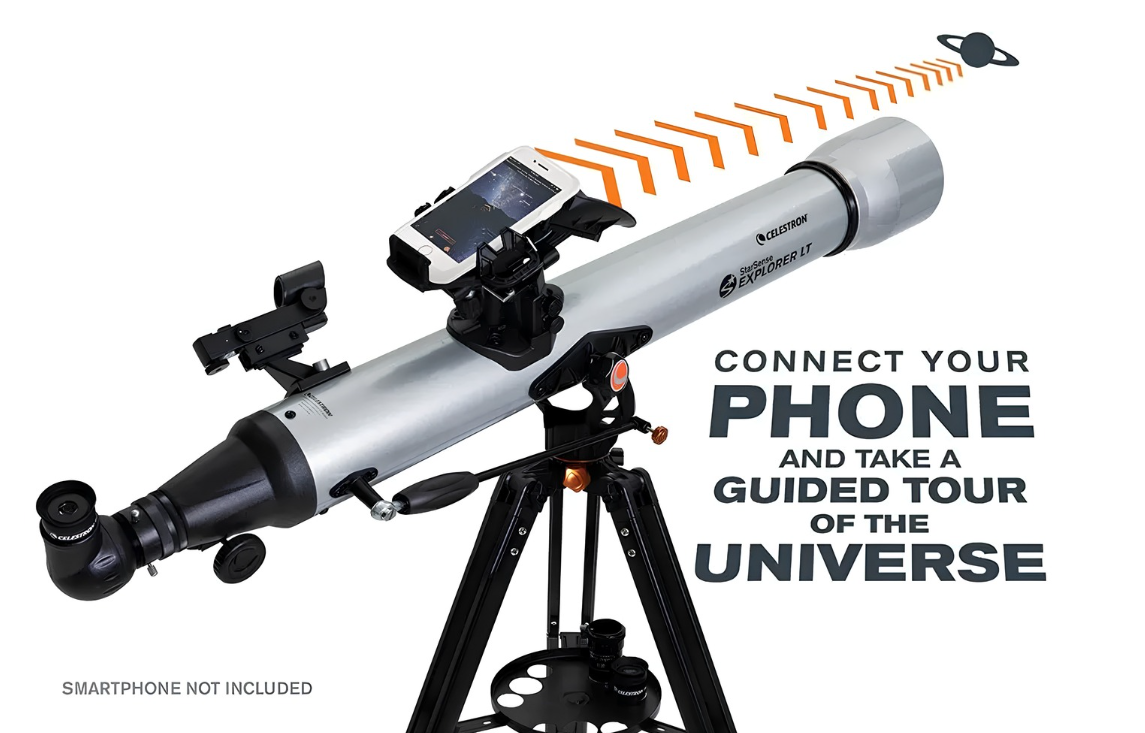
Connect your smartphone to the StarSense Explorer LT 80AZ and turn it into your personal guide to the night sky. The StarSense Explorer app helps you locate stars, planets, and deep-sky objects as you explore.
Dock, Launch & Observe
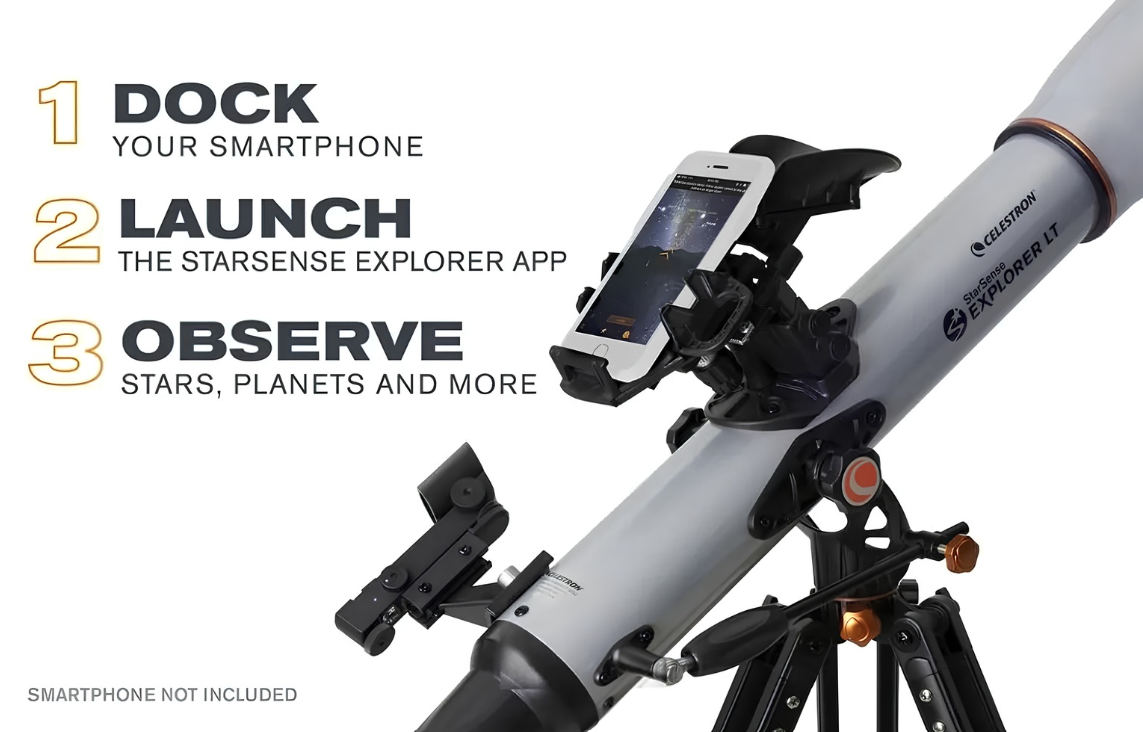
Getting started is simple: dock your smartphone, launch the StarSense Explorer app, and choose what you want to observe. The app analyzes the night sky and guides you toward your selected target.
Easy Sky Panning
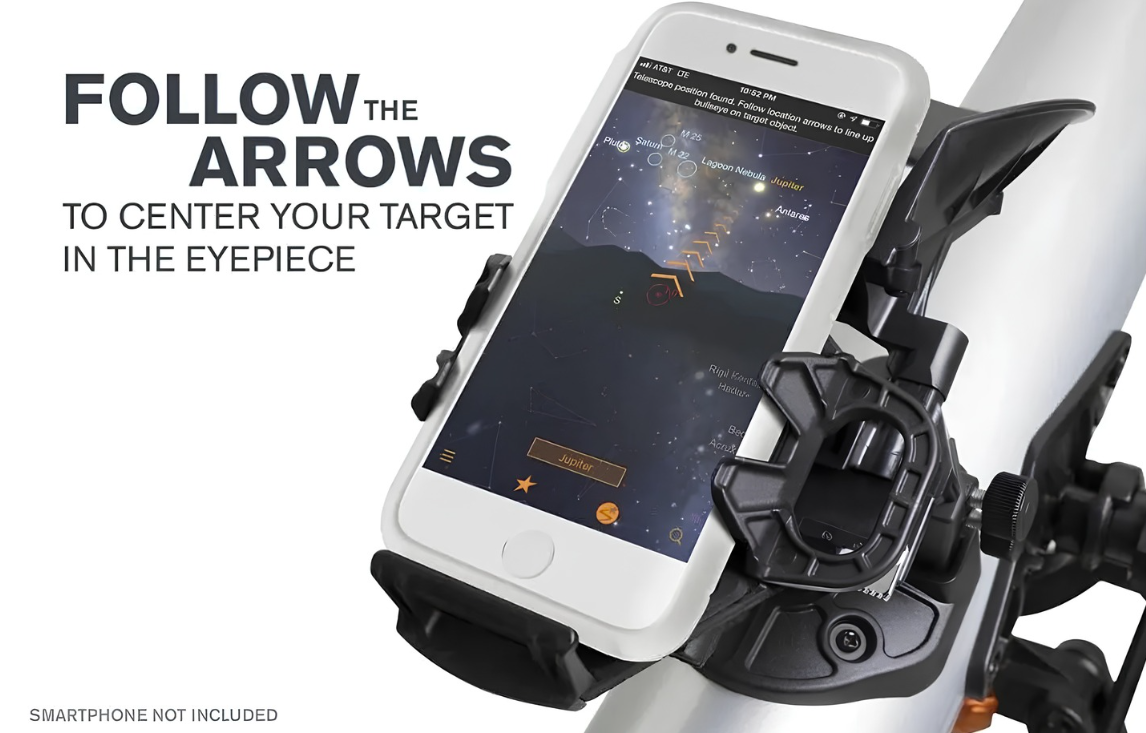
Select a target in the StarSense Explorer app and follow the on-screen arrows as you manually move the telescope. Once centered, simply look through the eyepiece and enjoy the view.
Sturdy Manual Alt/Az Mount
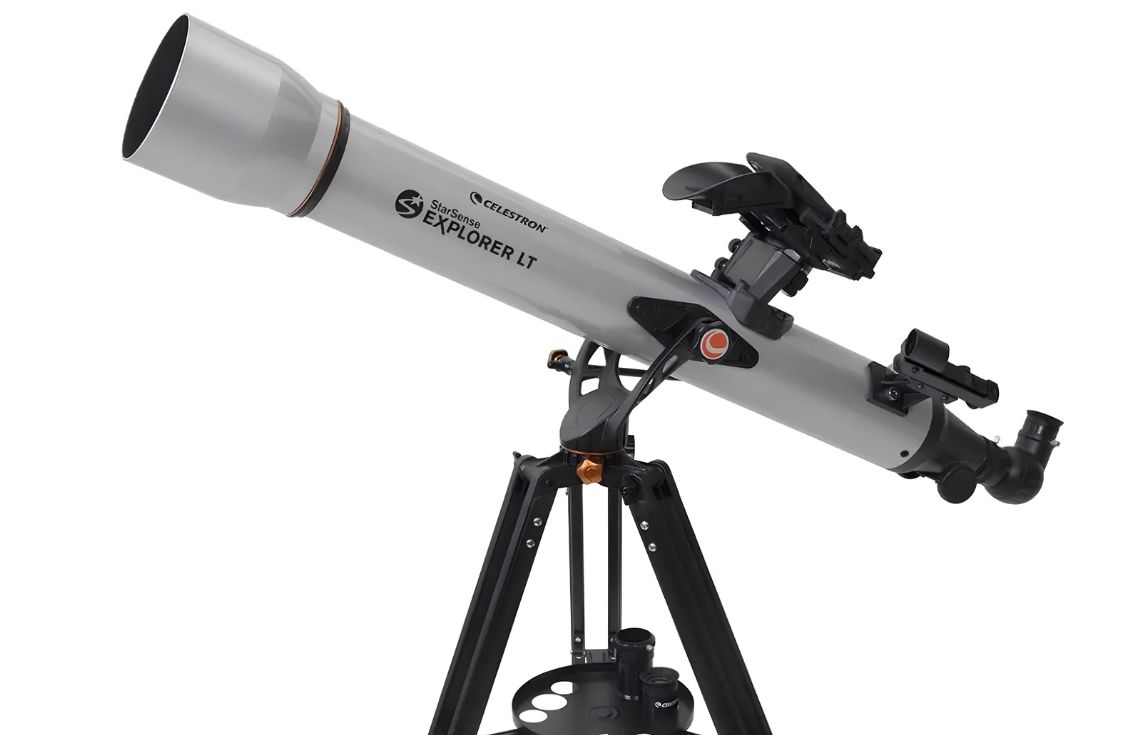
StarSense Explorer LT’s simple altazimuth mount makes it easy to move the telescope to find your target. A slow-motion altitude adjustment knob helps you fine tune the telescope’s pointing position and follow targets as they appear to drift across the night sky. It’s all anchored by an adjustable, full-height tripod. Please note this mount is not motorized, all sky panning is done manually.
High Quality 80mm Optics
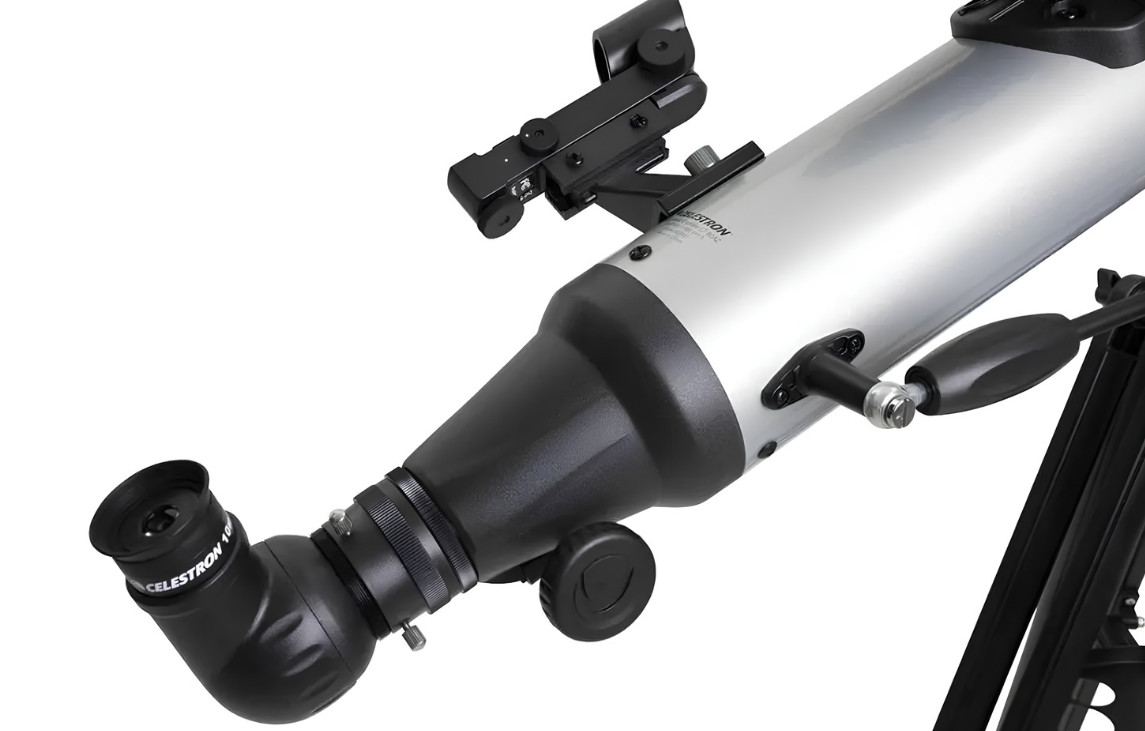
You can expect sharp, bright views through this 80mm refractor. Fully coated glass optics provide increased light transmission, enhancing details in celestial objects. The telescope also includes a 90-degree erect image diagonal, so you can use it during the day to view birds, wildlife, landscapes, and more.
Smartphone Compatibility
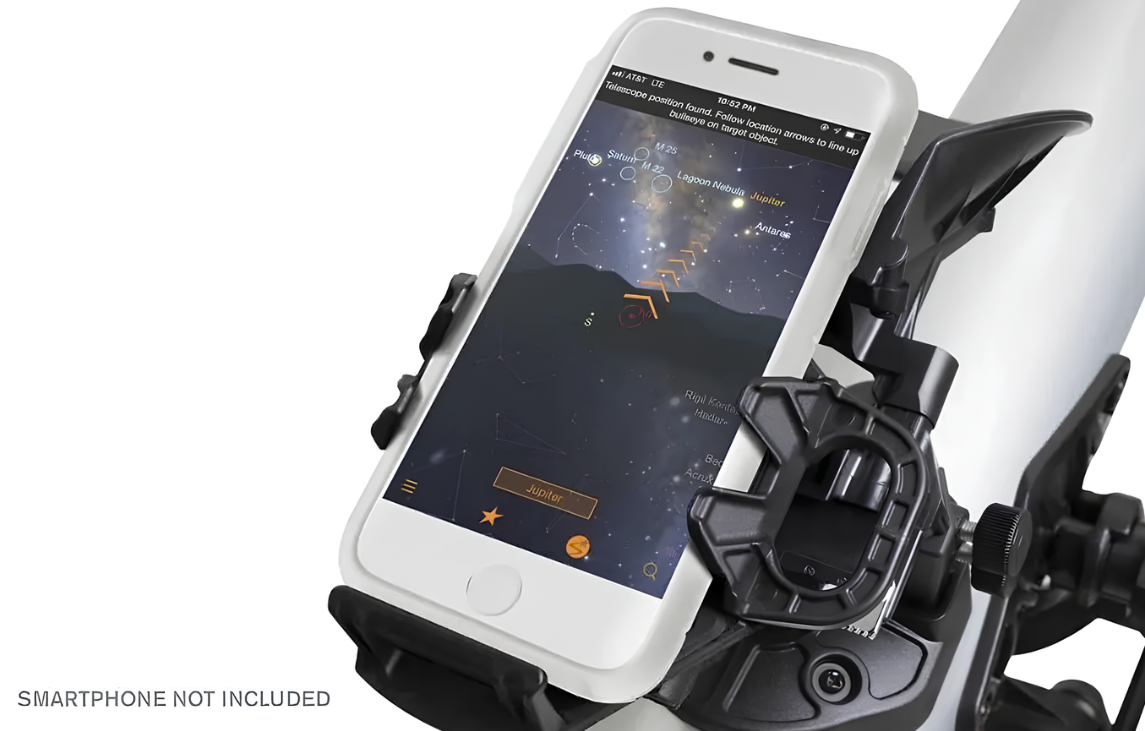
StarSense Explorer works with most modern smartphones; it is compatible with Android 12 and later, as well as iOS 18 and newer, including iPhone XR and newer models. Users with older phones can still use this app, but will not be able to reinstall the app if they uninstall it. For a complete compatibility list, click here.
StarSense Sky Recognition Technology
StarSense Explorer uses patent-pending technology and your smartphone to determine exactly where the telescope is pointed in the night sky. Its Lost in Space Algorithm (LISA) works similarly to technology used by satellites, matching visible star patterns with an internal database to pinpoint the telescope’s position. Unlike astronomy apps that rely mainly on a phone’s gyroscopes and accelerometers, StarSense provides more precise guidance to help you center targets in the eyepiece.
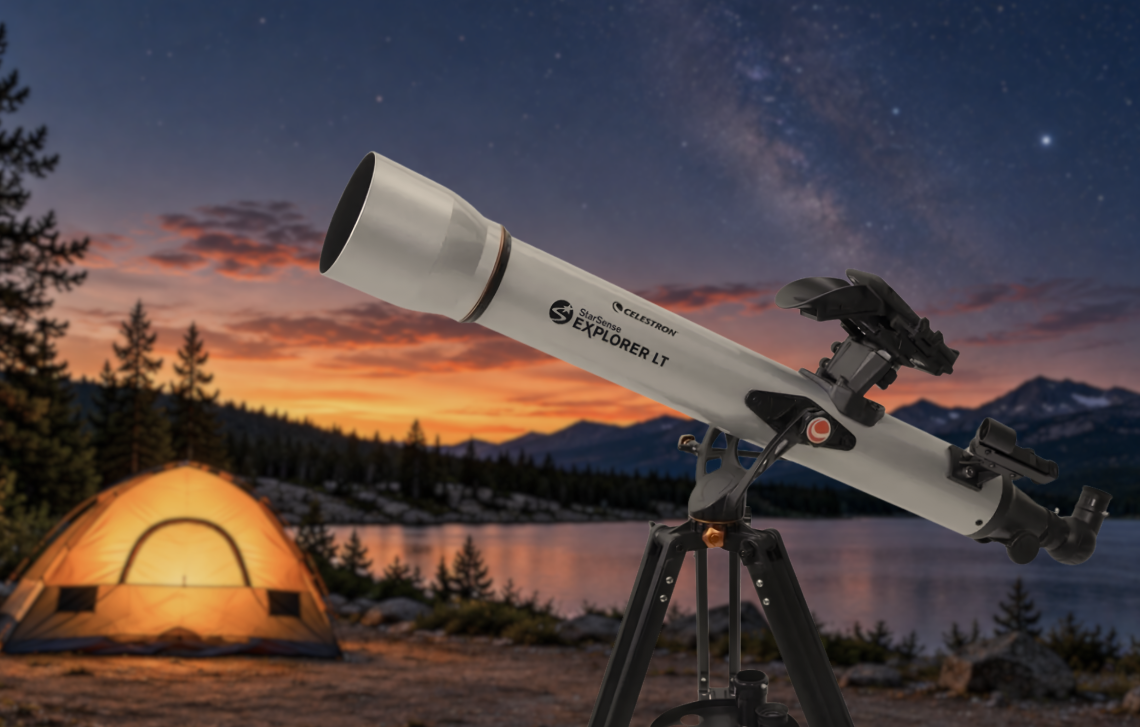
Perfect for Any Adventure
Even if you live in a light polluted city location, StarSense Explorer is advanced enough to be able to pick out Jupiter, Saturn, Venus, the Orion Nebula, double stars, and a few more of the most famous celestial objects. Taking the telescope to a dark sky location brings more objects into view. The entire telescope kit weighs just 9.2 lbs, making it portable and easy to bring on your next camping trip or to a remote observing site.
Specifications
Optical Specifications
- Optical Design: Refractor
- Aperture: 80 mm (3.1")
- Focal Length: 900 mm (35.4")
- Focal Ratio: f/11
- Optical Coatings: Fully coated
- Optical Tube Material: Aluminum
- Optical Tube Length: 965 mm (38")
- Optical Tube Diameter: 90 mm (3.54")
- Optical Tube Weight: 5.4 lb (2.45 kg)
- Highest Useful Magnification: 189x
- Lowest Useful Magnification: 11x
- Limiting Stellar Magnitude: 12
- Rayleigh Resolution: 1.74 arcsec
- Dawes Resolution: 1.45 arcsec
- Light-Gathering Power: 131x compared to the human eye
Included Optics & Accessories
- Eyepiece 1: 25 mm — 36x magnification
- Eyepiece 2: 10 mm — 90x magnification
- Barlow Lens: 2x, 1.25"
- Star Diagonal: 1.25" 90° erect-image diagonal
- Finderscope: StarPointer red dot finderscope
- Phone Dock: StarSense Explorer smartphone dock
- Accessory Tray: Included
Mount & Tripod
- Mount Type: Manual Alt-Azimuth
- Telescope Attachment: CG-5-style dovetail bar
- Tripod: Adjustable aluminum tripod
- Maximum Setup Height: 1320.8 mm (52")
- Tripod Leg Diameter: 31.75 mm (1.25")
- Tripod Weight: 3.8 lb (1.72 kg)
- Slew Control: Manual
- Power Requirements: None
- Total Kit Weight: 9.2 lb (4.17 kg)
StarSense Explorer & Software
- Alignment: StarSense Explorer app
- GPS: Uses smartphone GPS
- Compatible Software: StarSense Explorer app, SkyPortal app & Celestron Starry Night Basic Edition
Solar Warning:
- Never look directly at the Sun with the naked eye or with an optic (unless you have the proper solar filter). Permanent and irreversible eye damage may result.
- Never use your optic to project an image of the Sun onto any surface. Internal heat build-up can damage the optic and any accessories attached to it.
- Never leave your optic unsupervised. Make sure an adult who is familiar with the correct operating procedures is with your optic at all times, especially when children are present.
Frequently Asked Questions
I am having trouble reaching focus when using the Barlow lens. What could be the problem?
For StarSense Explorer LT refractors, the Barlow lens should be placed between the star diagonal and the focuser. Insert the eyepiece into the star diagonal as usual. This configuration should allow the telescope to reach infinity focus.
I have an Android smartphone. How can I determine if it is compatible with StarSense Explorer?
The easiest option is to use Celestron's StarSense Explorer smartphone compatibility checker. Most supported Android devices can also be verified by downloading and opening the StarSense Explorer app, which will indicate whether the phone is compatible.
The bullseye turned green, but I can't see the object in the eyepiece. What's going on?
First, check the smartphone-to-telescope alignment and realign the camera if necessary. If alignment is correct, the selected object may simply be too faint for your observing conditions, especially under light-polluted or moonlit skies.
My smartphone holder is slipping on the StarSense dock. How can I fix it?
The StarSense dock includes tensioning screws for each axis of the smartphone holder. Remove the phone and dock from the telescope, then carefully tighten the appropriate screws with a small Phillips screwdriver until the holder remains securely in position. Avoid overtightening.
The edges of my camera's field of view are cut off when centered over the StarSense dock mirror. Is this OK?
Yes. Some smartphone cameras have fields of view that are wider than the StarSense dock mirror. This normally does not affect performance because the camera can still see enough of the sky for StarSense Explorer to determine where the telescope is pointed.
Why does the StarSense Explorer bullseye stay red or fail to find objects?
The app may not be detecting enough stars. Common causes include clouds or haze, observing before the sky is fully dark, nearby lights, trees or buildings blocking the camera, a bright Moon, improper camera alignment, reflections from the phone or case, or dew on the StarSense dock mirror.
Can I access Object Info pages from the planetarium view?
Yes. Select the orange rectangle displaying the object's name at the bottom of the screen to open its Object Info page.
Why does an object slowly drift out of the eyepiece after I find it?
This is caused by Earth's rotation. Because the StarSense Explorer LT uses a manual mount, periodically move the telescope slightly to re-center the object. The app's bullseye can help guide you back to the target.
What is the difference between the StarSense Explorer app and the SkyPortal app?
StarSense Explorer is designed specifically for StarSense Explorer telescopes and works with the StarSense dock to guide you to celestial objects. SkyPortal is a general-purpose astronomy and planetarium app that can also control compatible Celestron computerized telescopes.
Why am I seeing reflections or double images when centering my smartphone camera?
Reflective or metallic phone surfaces and cases can cause stray light to reflect into the StarSense dock mirror and camera. Try using a non-reflective phone case and move away from nearby light sources.
Why does the bullseye appear to drift even though the telescope isn't moving?
This can occur when a smartphone's gyro or accelerometer reports slight movement even while the telescope is stationary. The bullseye should correct its position after the next successful plate solve.
Can StarSense Explorer save the images captured by my smartphone?
Yes. The "Save Images & Logs" option can save the images StarSense Explorer uses for plate solving. These are primarily intended for troubleshooting rather than astrophotography and may consume significant phone storage if left enabled.
My smartphone screen is too bright while observing. What can I do?
Lower your phone's screen brightness and enable Night Vision mode from the StarSense Explorer menu. Night Vision uses red light to help preserve your eyes' dark adaptation.
Why did an object disappear from the Tonight's Best list?
Tonight's Best displays objects that are currently visible. Objects can move below the horizon as the night progresses, so check the listed set times when planning your observing session.
Why does the telescope include a StarPointer red dot finderscope?
The StarPointer helps with initial camera alignment and provides another way to aim the telescope. It's also useful for daytime observing or anytime you want to use the telescope without your smartphone.
Can StarSense Explorer find the Moon or planets during the day?
No. The daytime sky is too bright for StarSense Explorer's sky-recognition technology to detect the star patterns it needs for navigation.
Can I change the date or time in StarSense Explorer?
No. StarSense Explorer uses your smartphone's current date and time so it can accurately guide the telescope. Celestron's SkyPortal app can be used if you want to explore how the sky looks at different dates and times.
Why would I need to manually set my location?
If you allow StarSense Explorer to access your phone's location services, your location is determined automatically. If location access is disabled, you'll need to enter your observing location manually for accurate navigation.
Can I use StarSense Explorer with a tablet?
No. Tablets are too large to fit properly in the StarSense Explorer smartphone dock.
How many smartphones can I use with one StarSense Explorer unlock code?
Each StarSense Explorer unlock code can unlock the app on up to five different devices.
What does the Camera Setup Assistant do?
The Camera Setup Assistant walks you through smartphone camera alignment using on-screen instructions, images, and videos. It appears during initial setup and can be turned on again from the app's menu.
Is it normal for StarSense Explorer to drain my smartphone battery faster?
Yes. StarSense Explorer continuously captures and processes images to determine where the telescope is pointed, which requires additional battery power. Fully charge your phone before longer observing sessions or keep a portable charger nearby.
How do I zoom in or out in StarSense Explorer?
Use the standard pinch-to-zoom gesture in the planetarium view. Pinch inward to zoom out and outward to zoom in.
Why doesn't Celestron Audio play on my iPhone?
Make sure your iPhone's ring/silent switch is set so Silent Mode is turned off. You should then be able to hear the audio presentation.
What are Advanced Camera Settings on Android?
Advanced Camera Settings allow manual adjustment of settings such as exposure, focus, and gain. Most users should leave these settings off, but they can help if an Android phone has difficulty consistently detecting stars.
Why doesn't StarSense Explorer work as well near the horizon?
Atmospheric refraction, haze, and light pollution can make it harder for StarSense Explorer to recognize stars near the horizon. These same conditions can also reduce the quality of the view through the telescope.
Does weather affect StarSense Explorer?
Yes. Clouds, fog, and haze can prevent the camera from detecting enough stars, while strong winds can introduce movement that interferes with StarSense Explorer's sky recognition. Extremely cold temperatures may also affect your smartphone's performance.
Other Information
- Country of Manufacture: China
- Celestron Warranty: Two-year factory limited warranty (within US/Canada only).
StarSense Explorer LT 80AZ: Your Personal Guide of the Night Sky!
The Celestron StarSense Explorer LT 80AZ combines an 80mm refractor with smartphone-guided navigation, making it easy for beginners to start exploring the night sky. Simply dock your phone, launch the StarSense Explorer app, and follow the on-screen arrows to stars, planets, and more. The telescope comes ready to observe with 25mm and 10mm eyepieces, a 2x Barlow lens, 90° erect-image diagonal, StarPointer red dot finderscope, smartphone dock, and adjustable tripod.
Follow along with Celestron to get the StarSense Explorer 80mm ready for the night sky:
See Why the Explorer 80mm is a Must-Have for Beginners!
Guided Observing
Connect your smartphone to the StarSense Explorer LT 80AZ and turn it into your personal guide to the night sky. The StarSense Explorer app helps you locate stars, planets, and deep-sky objects as you explore.
Dock, Launch & Observe
Getting started is simple: dock your smartphone, launch the StarSense Explorer app, and choose what you want to observe. The app analyzes the night sky and guides you toward your selected target.
Easy Sky Panning
Select a target in the StarSense Explorer app and follow the on-screen arrows as you manually move the telescope. Once centered, simply look through the eyepiece and enjoy the view.
Sturdy Manual Alt/Az Mount
StarSense Explorer LT’s simple altazimuth mount makes it easy to move the telescope to find your target. A slow-motion altitude adjustment knob helps you fine tune the telescope’s pointing position and follow targets as they appear to drift across the night sky. It’s all anchored by an adjustable, full-height tripod. Please note this mount is not motorized, all sky panning is done manually.
High Quality 80mm Optics
You can expect sharp, bright views through this 80mm refractor. Fully coated glass optics provide increased light transmission, enhancing details in celestial objects. The telescope also includes a 90-degree erect image diagonal, so you can use it during the day to view birds, wildlife, landscapes, and more.
Smartphone Compatibility
StarSense Explorer works with most modern smartphones; it is compatible with Android 12 and later, as well as iOS 18 and newer, including iPhone XR and newer models. Users with older phones can still use this app, but will not be able to reinstall the app if they uninstall it. For a complete compatibility list, click here.
StarSense Sky Recognition Technology
StarSense Explorer uses patent-pending technology and your smartphone to determine exactly where the telescope is pointed in the night sky. Its Lost in Space Algorithm (LISA) works similarly to technology used by satellites, matching visible star patterns with an internal database to pinpoint the telescope’s position. Unlike astronomy apps that rely mainly on a phone’s gyroscopes and accelerometers, StarSense provides more precise guidance to help you center targets in the eyepiece.
Perfect for Any Adventure
Even if you live in a light polluted city location, StarSense Explorer is advanced enough to be able to pick out Jupiter, Saturn, Venus, the Orion Nebula, double stars, and a few more of the most famous celestial objects. Taking the telescope to a dark sky location brings more objects into view. The entire telescope kit weighs just 9.2 lbs, making it portable and easy to bring on your next camping trip or to a remote observing site.
Specifications
Optical Specifications
- Optical Design: Refractor
- Aperture: 80 mm (3.1")
- Focal Length: 900 mm (35.4")
- Focal Ratio: f/11
- Optical Coatings: Fully coated
- Optical Tube Material: Aluminum
- Optical Tube Length: 965 mm (38")
- Optical Tube Diameter: 90 mm (3.54")
- Optical Tube Weight: 5.4 lb (2.45 kg)
- Highest Useful Magnification: 189x
- Lowest Useful Magnification: 11x
- Limiting Stellar Magnitude: 12
- Rayleigh Resolution: 1.74 arcsec
- Dawes Resolution: 1.45 arcsec
- Light-Gathering Power: 131x compared to the human eye
Included Optics & Accessories
- Eyepiece 1: 25 mm — 36x magnification
- Eyepiece 2: 10 mm — 90x magnification
- Barlow Lens: 2x, 1.25"
- Star Diagonal: 1.25" 90° erect-image diagonal
- Finderscope: StarPointer red dot finderscope
- Phone Dock: StarSense Explorer smartphone dock
- Accessory Tray: Included
Mount & Tripod
- Mount Type: Manual Alt-Azimuth
- Telescope Attachment: CG-5-style dovetail bar
- Tripod: Adjustable aluminum tripod
- Maximum Setup Height: 1320.8 mm (52")
- Tripod Leg Diameter: 31.75 mm (1.25")
- Tripod Weight: 3.8 lb (1.72 kg)
- Slew Control: Manual
- Power Requirements: None
- Total Kit Weight: 9.2 lb (4.17 kg)
StarSense Explorer & Software
- Alignment: StarSense Explorer app
- GPS: Uses smartphone GPS
- Compatible Software: StarSense Explorer app, SkyPortal app & Celestron Starry Night Basic Edition
Solar Warning:
- Never look directly at the Sun with the naked eye or with an optic (unless you have the proper solar filter). Permanent and irreversible eye damage may result.
- Never use your optic to project an image of the Sun onto any surface. Internal heat build-up can damage the optic and any accessories attached to it.
- Never leave your optic unsupervised. Make sure an adult who is familiar with the correct operating procedures is with your optic at all times, especially when children are present.
Frequently Asked Questions
I am having trouble reaching focus when using the Barlow lens. What could be the problem?
For StarSense Explorer LT refractors, the Barlow lens should be placed between the star diagonal and the focuser. Insert the eyepiece into the star diagonal as usual. This configuration should allow the telescope to reach infinity focus.
I have an Android smartphone. How can I determine if it is compatible with StarSense Explorer?
The easiest option is to use Celestron's StarSense Explorer smartphone compatibility checker. Most supported Android devices can also be verified by downloading and opening the StarSense Explorer app, which will indicate whether the phone is compatible.
The bullseye turned green, but I can't see the object in the eyepiece. What's going on?
First, check the smartphone-to-telescope alignment and realign the camera if necessary. If alignment is correct, the selected object may simply be too faint for your observing conditions, especially under light-polluted or moonlit skies.
My smartphone holder is slipping on the StarSense dock. How can I fix it?
The StarSense dock includes tensioning screws for each axis of the smartphone holder. Remove the phone and dock from the telescope, then carefully tighten the appropriate screws with a small Phillips screwdriver until the holder remains securely in position. Avoid overtightening.
The edges of my camera's field of view are cut off when centered over the StarSense dock mirror. Is this OK?
Yes. Some smartphone cameras have fields of view that are wider than the StarSense dock mirror. This normally does not affect performance because the camera can still see enough of the sky for StarSense Explorer to determine where the telescope is pointed.
Why does the StarSense Explorer bullseye stay red or fail to find objects?
The app may not be detecting enough stars. Common causes include clouds or haze, observing before the sky is fully dark, nearby lights, trees or buildings blocking the camera, a bright Moon, improper camera alignment, reflections from the phone or case, or dew on the StarSense dock mirror.
Can I access Object Info pages from the planetarium view?
Yes. Select the orange rectangle displaying the object's name at the bottom of the screen to open its Object Info page.
Why does an object slowly drift out of the eyepiece after I find it?
This is caused by Earth's rotation. Because the StarSense Explorer LT uses a manual mount, periodically move the telescope slightly to re-center the object. The app's bullseye can help guide you back to the target.
What is the difference between the StarSense Explorer app and the SkyPortal app?
StarSense Explorer is designed specifically for StarSense Explorer telescopes and works with the StarSense dock to guide you to celestial objects. SkyPortal is a general-purpose astronomy and planetarium app that can also control compatible Celestron computerized telescopes.
Why am I seeing reflections or double images when centering my smartphone camera?
Reflective or metallic phone surfaces and cases can cause stray light to reflect into the StarSense dock mirror and camera. Try using a non-reflective phone case and move away from nearby light sources.
Why does the bullseye appear to drift even though the telescope isn't moving?
This can occur when a smartphone's gyro or accelerometer reports slight movement even while the telescope is stationary. The bullseye should correct its position after the next successful plate solve.
Can StarSense Explorer save the images captured by my smartphone?
Yes. The "Save Images & Logs" option can save the images StarSense Explorer uses for plate solving. These are primarily intended for troubleshooting rather than astrophotography and may consume significant phone storage if left enabled.
My smartphone screen is too bright while observing. What can I do?
Lower your phone's screen brightness and enable Night Vision mode from the StarSense Explorer menu. Night Vision uses red light to help preserve your eyes' dark adaptation.
Why did an object disappear from the Tonight's Best list?
Tonight's Best displays objects that are currently visible. Objects can move below the horizon as the night progresses, so check the listed set times when planning your observing session.
Why does the telescope include a StarPointer red dot finderscope?
The StarPointer helps with initial camera alignment and provides another way to aim the telescope. It's also useful for daytime observing or anytime you want to use the telescope without your smartphone.
Can StarSense Explorer find the Moon or planets during the day?
No. The daytime sky is too bright for StarSense Explorer's sky-recognition technology to detect the star patterns it needs for navigation.
Can I change the date or time in StarSense Explorer?
No. StarSense Explorer uses your smartphone's current date and time so it can accurately guide the telescope. Celestron's SkyPortal app can be used if you want to explore how the sky looks at different dates and times.
Why would I need to manually set my location?
If you allow StarSense Explorer to access your phone's location services, your location is determined automatically. If location access is disabled, you'll need to enter your observing location manually for accurate navigation.
Can I use StarSense Explorer with a tablet?
No. Tablets are too large to fit properly in the StarSense Explorer smartphone dock.
How many smartphones can I use with one StarSense Explorer unlock code?
Each StarSense Explorer unlock code can unlock the app on up to five different devices.
What does the Camera Setup Assistant do?
The Camera Setup Assistant walks you through smartphone camera alignment using on-screen instructions, images, and videos. It appears during initial setup and can be turned on again from the app's menu.
Is it normal for StarSense Explorer to drain my smartphone battery faster?
Yes. StarSense Explorer continuously captures and processes images to determine where the telescope is pointed, which requires additional battery power. Fully charge your phone before longer observing sessions or keep a portable charger nearby.
How do I zoom in or out in StarSense Explorer?
Use the standard pinch-to-zoom gesture in the planetarium view. Pinch inward to zoom out and outward to zoom in.
Why doesn't Celestron Audio play on my iPhone?
Make sure your iPhone's ring/silent switch is set so Silent Mode is turned off. You should then be able to hear the audio presentation.
What are Advanced Camera Settings on Android?
Advanced Camera Settings allow manual adjustment of settings such as exposure, focus, and gain. Most users should leave these settings off, but they can help if an Android phone has difficulty consistently detecting stars.
Why doesn't StarSense Explorer work as well near the horizon?
Atmospheric refraction, haze, and light pollution can make it harder for StarSense Explorer to recognize stars near the horizon. These same conditions can also reduce the quality of the view through the telescope.
Does weather affect StarSense Explorer?
Yes. Clouds, fog, and haze can prevent the camera from detecting enough stars, while strong winds can introduce movement that interferes with StarSense Explorer's sky recognition. Extremely cold temperatures may also affect your smartphone's performance.
| Manufacturer | Celestron |
|---|---|
| Telescope Focal Length | 801 - 900mm |
- 80 mm Refractor Optical Tube
- Manual Alt-Azimuth Mount & Tripod
- StarSense Explorer Smartphone Dock
- 25 mm Eyepiece
- 10 mm Eyepiece
- 2x Barlow Lens
- 1.25" Erect-Image Diagonal
- StarPointer Red Dot Finderscope
- Accessory Tray


- 80mm refractor optical tube
- StarSense dock for your smartphone
- Low powered (25mm) and high powered (10mm) eyepiece
- 2x Barlow lens to double the power of each eyepiece
- 90-degree erect image diagonal
- StarPointer red dot finderscope, perfect for using the telescope during the day or without the StarSense Explorer app
- Altazimuth mount with slow motion control rod
- Full-height tripod with an accessory tray to keep you organized
StarSense Explorer LT 80AZ: Your Personal Guide of the Night Sky!
The Celestron StarSense Explorer LT 80AZ combines an 80mm refractor with smartphone-guided navigation, making it easy for beginners to start exploring the night sky. Simply dock your phone, launch the StarSense Explorer app, and follow the on-screen arrows to stars, planets, and more. The telescope comes ready to observe with 25mm and 10mm eyepieces, a 2x Barlow lens, 90° erect-image diagonal, StarPointer red dot finderscope, smartphone dock, and adjustable tripod.
Follow along with Celestron to get the StarSense Explorer 80mm ready for the night sky:
See Why the Explorer 80mm is a Must-Have for Beginners!
Guided Observing
Connect your smartphone to the StarSense Explorer LT 80AZ and turn it into your personal guide to the night sky. The StarSense Explorer app helps you locate stars, planets, and deep-sky objects as you explore.
Dock, Launch & Observe
Getting started is simple: dock your smartphone, launch the StarSense Explorer app, and choose what you want to observe. The app analyzes the night sky and guides you toward your selected target.
Easy Sky Panning
Select a target in the StarSense Explorer app and follow the on-screen arrows as you manually move the telescope. Once centered, simply look through the eyepiece and enjoy the view.
Sturdy Manual Alt/Az Mount
StarSense Explorer LT’s simple altazimuth mount makes it easy to move the telescope to find your target. A slow-motion altitude adjustment knob helps you fine tune the telescope’s pointing position and follow targets as they appear to drift across the night sky. It’s all anchored by an adjustable, full-height tripod. Please note this mount is not motorized, all sky panning is done manually.
High Quality 80mm Optics
You can expect sharp, bright views through this 80mm refractor. Fully coated glass optics provide increased light transmission, enhancing details in celestial objects. The telescope also includes a 90-degree erect image diagonal, so you can use it during the day to view birds, wildlife, landscapes, and more.
Smartphone Compatibility
StarSense Explorer works with most modern smartphones; it is compatible with Android 12 and later, as well as iOS 18 and newer, including iPhone XR and newer models. Users with older phones can still use this app, but will not be able to reinstall the app if they uninstall it. For a complete compatibility list, click here.
StarSense Sky Recognition Technology
StarSense Explorer uses patent-pending technology and your smartphone to determine exactly where the telescope is pointed in the night sky. Its Lost in Space Algorithm (LISA) works similarly to technology used by satellites, matching visible star patterns with an internal database to pinpoint the telescope’s position. Unlike astronomy apps that rely mainly on a phone’s gyroscopes and accelerometers, StarSense provides more precise guidance to help you center targets in the eyepiece.
Perfect for Any Adventure
Even if you live in a light polluted city location, StarSense Explorer is advanced enough to be able to pick out Jupiter, Saturn, Venus, the Orion Nebula, double stars, and a few more of the most famous celestial objects. Taking the telescope to a dark sky location brings more objects into view. The entire telescope kit weighs just 9.2 lbs, making it portable and easy to bring on your next camping trip or to a remote observing site.
Specifications
Optical Specifications
- Optical Design: Refractor
- Aperture: 80 mm (3.1")
- Focal Length: 900 mm (35.4")
- Focal Ratio: f/11
- Optical Coatings: Fully coated
- Optical Tube Material: Aluminum
- Optical Tube Length: 965 mm (38")
- Optical Tube Diameter: 90 mm (3.54")
- Optical Tube Weight: 5.4 lb (2.45 kg)
- Highest Useful Magnification: 189x
- Lowest Useful Magnification: 11x
- Limiting Stellar Magnitude: 12
- Rayleigh Resolution: 1.74 arcsec
- Dawes Resolution: 1.45 arcsec
- Light-Gathering Power: 131x compared to the human eye
Included Optics & Accessories
- Eyepiece 1: 25 mm — 36x magnification
- Eyepiece 2: 10 mm — 90x magnification
- Barlow Lens: 2x, 1.25"
- Star Diagonal: 1.25" 90° erect-image diagonal
- Finderscope: StarPointer red dot finderscope
- Phone Dock: StarSense Explorer smartphone dock
- Accessory Tray: Included
Mount & Tripod
- Mount Type: Manual Alt-Azimuth
- Telescope Attachment: CG-5-style dovetail bar
- Tripod: Adjustable aluminum tripod
- Maximum Setup Height: 1320.8 mm (52")
- Tripod Leg Diameter: 31.75 mm (1.25")
- Tripod Weight: 3.8 lb (1.72 kg)
- Slew Control: Manual
- Power Requirements: None
- Total Kit Weight: 9.2 lb (4.17 kg)
StarSense Explorer & Software
- Alignment: StarSense Explorer app
- GPS: Uses smartphone GPS
- Compatible Software: StarSense Explorer app, SkyPortal app & Celestron Starry Night Basic Edition
Solar Warning:
- Never look directly at the Sun with the naked eye or with an optic (unless you have the proper solar filter). Permanent and irreversible eye damage may result.
- Never use your optic to project an image of the Sun onto any surface. Internal heat build-up can damage the optic and any accessories attached to it.
- Never leave your optic unsupervised. Make sure an adult who is familiar with the correct operating procedures is with your optic at all times, especially when children are present.
Frequently Asked Questions
I am having trouble reaching focus when using the Barlow lens. What could be the problem?
For StarSense Explorer LT refractors, the Barlow lens should be placed between the star diagonal and the focuser. Insert the eyepiece into the star diagonal as usual. This configuration should allow the telescope to reach infinity focus.
I have an Android smartphone. How can I determine if it is compatible with StarSense Explorer?
The easiest option is to use Celestron's StarSense Explorer smartphone compatibility checker. Most supported Android devices can also be verified by downloading and opening the StarSense Explorer app, which will indicate whether the phone is compatible.
The bullseye turned green, but I can't see the object in the eyepiece. What's going on?
First, check the smartphone-to-telescope alignment and realign the camera if necessary. If alignment is correct, the selected object may simply be too faint for your observing conditions, especially under light-polluted or moonlit skies.
My smartphone holder is slipping on the StarSense dock. How can I fix it?
The StarSense dock includes tensioning screws for each axis of the smartphone holder. Remove the phone and dock from the telescope, then carefully tighten the appropriate screws with a small Phillips screwdriver until the holder remains securely in position. Avoid overtightening.
The edges of my camera's field of view are cut off when centered over the StarSense dock mirror. Is this OK?
Yes. Some smartphone cameras have fields of view that are wider than the StarSense dock mirror. This normally does not affect performance because the camera can still see enough of the sky for StarSense Explorer to determine where the telescope is pointed.
Why does the StarSense Explorer bullseye stay red or fail to find objects?
The app may not be detecting enough stars. Common causes include clouds or haze, observing before the sky is fully dark, nearby lights, trees or buildings blocking the camera, a bright Moon, improper camera alignment, reflections from the phone or case, or dew on the StarSense dock mirror.
Can I access Object Info pages from the planetarium view?
Yes. Select the orange rectangle displaying the object's name at the bottom of the screen to open its Object Info page.
Why does an object slowly drift out of the eyepiece after I find it?
This is caused by Earth's rotation. Because the StarSense Explorer LT uses a manual mount, periodically move the telescope slightly to re-center the object. The app's bullseye can help guide you back to the target.
What is the difference between the StarSense Explorer app and the SkyPortal app?
StarSense Explorer is designed specifically for StarSense Explorer telescopes and works with the StarSense dock to guide you to celestial objects. SkyPortal is a general-purpose astronomy and planetarium app that can also control compatible Celestron computerized telescopes.
Why am I seeing reflections or double images when centering my smartphone camera?
Reflective or metallic phone surfaces and cases can cause stray light to reflect into the StarSense dock mirror and camera. Try using a non-reflective phone case and move away from nearby light sources.
Why does the bullseye appear to drift even though the telescope isn't moving?
This can occur when a smartphone's gyro or accelerometer reports slight movement even while the telescope is stationary. The bullseye should correct its position after the next successful plate solve.
Can StarSense Explorer save the images captured by my smartphone?
Yes. The "Save Images & Logs" option can save the images StarSense Explorer uses for plate solving. These are primarily intended for troubleshooting rather than astrophotography and may consume significant phone storage if left enabled.
My smartphone screen is too bright while observing. What can I do?
Lower your phone's screen brightness and enable Night Vision mode from the StarSense Explorer menu. Night Vision uses red light to help preserve your eyes' dark adaptation.
Why did an object disappear from the Tonight's Best list?
Tonight's Best displays objects that are currently visible. Objects can move below the horizon as the night progresses, so check the listed set times when planning your observing session.
Why does the telescope include a StarPointer red dot finderscope?
The StarPointer helps with initial camera alignment and provides another way to aim the telescope. It's also useful for daytime observing or anytime you want to use the telescope without your smartphone.
Can StarSense Explorer find the Moon or planets during the day?
No. The daytime sky is too bright for StarSense Explorer's sky-recognition technology to detect the star patterns it needs for navigation.
Can I change the date or time in StarSense Explorer?
No. StarSense Explorer uses your smartphone's current date and time so it can accurately guide the telescope. Celestron's SkyPortal app can be used if you want to explore how the sky looks at different dates and times.
Why would I need to manually set my location?
If you allow StarSense Explorer to access your phone's location services, your location is determined automatically. If location access is disabled, you'll need to enter your observing location manually for accurate navigation.
Can I use StarSense Explorer with a tablet?
No. Tablets are too large to fit properly in the StarSense Explorer smartphone dock.
How many smartphones can I use with one StarSense Explorer unlock code?
Each StarSense Explorer unlock code can unlock the app on up to five different devices.
What does the Camera Setup Assistant do?
The Camera Setup Assistant walks you through smartphone camera alignment using on-screen instructions, images, and videos. It appears during initial setup and can be turned on again from the app's menu.
Is it normal for StarSense Explorer to drain my smartphone battery faster?
Yes. StarSense Explorer continuously captures and processes images to determine where the telescope is pointed, which requires additional battery power. Fully charge your phone before longer observing sessions or keep a portable charger nearby.
How do I zoom in or out in StarSense Explorer?
Use the standard pinch-to-zoom gesture in the planetarium view. Pinch inward to zoom out and outward to zoom in.
Why doesn't Celestron Audio play on my iPhone?
Make sure your iPhone's ring/silent switch is set so Silent Mode is turned off. You should then be able to hear the audio presentation.
What are Advanced Camera Settings on Android?
Advanced Camera Settings allow manual adjustment of settings such as exposure, focus, and gain. Most users should leave these settings off, but they can help if an Android phone has difficulty consistently detecting stars.
Why doesn't StarSense Explorer work as well near the horizon?
Atmospheric refraction, haze, and light pollution can make it harder for StarSense Explorer to recognize stars near the horizon. These same conditions can also reduce the quality of the view through the telescope.
Does weather affect StarSense Explorer?
Yes. Clouds, fog, and haze can prevent the camera from detecting enough stars, while strong winds can introduce movement that interferes with StarSense Explorer's sky recognition. Extremely cold temperatures may also affect your smartphone's performance.
Other Information
- Country of Manufacture: China
- Celestron Warranty: Two-year factory limited warranty (within US/Canada only).
| Manufacturer | Celestron |
|---|---|
| Telescope Focal Length | 801 - 900mm |
- 80 mm Refractor Optical Tube
- Manual Alt-Azimuth Mount & Tripod
- StarSense Explorer Smartphone Dock
- 25 mm Eyepiece
- 10 mm Eyepiece
- 2x Barlow Lens
- 1.25" Erect-Image Diagonal
- StarPointer Red Dot Finderscope
- Accessory Tray

Celestron StarSense Explorer LT 80AZ App-Enabled Refractor Telescope